
Notes App in Jetpack Compose with Room Database (2026)
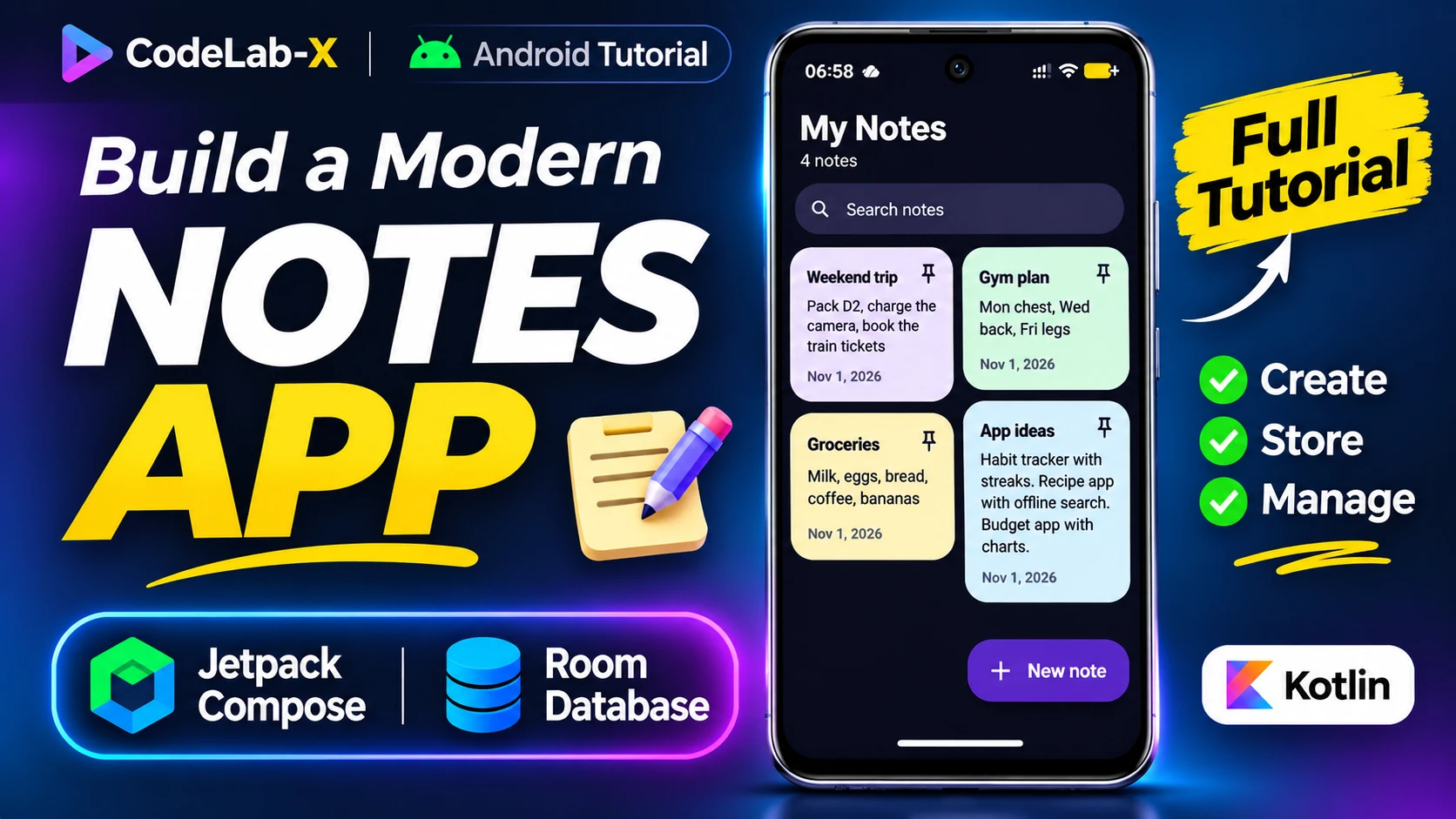
Build a beautiful notes app from scratch with Jetpack Compose and Room: colourful cards, live search, pin to top, a colour picker and delete with Undo. The modern way to save data on Android, step by step.
What you'll learn
- Store data with Room: entity, DAO and database
- Keep the UI in sync with Flow and StateFlow
- Build screens with Jetpack Compose and Material 3
- Move between screens with Navigation Compose
Before you start
- Android Studio (any recent version)
- Basic Kotlin: functions, classes and lambdas
- An emulator or an Android phone
How it fits together
- 1Compose screens
- 2NotesViewModel
- 3NoteDao
- 4Room notes table
- 5Flow back to the screen
Build it step by step
1. Create the project
In Android Studio choose New Project → Empty Activity (the Compose one), with Minimum SDK API 24. To copy the code unchanged, use the package name com.example.notes.
2. Add Room, Navigation and KSP
In gradle/libs.versions.toml, add the versions, libraries and the KSP plugin shown in Required setup (Room 2.8.5, Navigation 2.10.2, Lifecycle 2.11.0, KSP 2.3.12). Then in app/build.gradle.kts:
plugins {
    alias(libs.plugins.ksp)
}

dependencies {
    implementation(libs.androidx.room.runtime)
    implementation(libs.androidx.room.ktx)
    ksp(libs.androidx.room.compiler)
    implementation(libs.androidx.navigation.compose)
    implementation(libs.androidx.lifecycle.viewmodel.compose)
    implementation(libs.androidx.lifecycle.runtime.compose)
    implementation(libs.androidx.compose.material.icons.extended)
}
And in the project-level build.gradle.kts, add alias(libs.plugins.ksp) apply false to plugins. Press Sync Now. KSP is the tool that generates Room's database code for you.
3. Describe a note
Note is a Kotlin data class with @Entity. Room creates a notes table with a column for each property: id, title, content, color, pinned and updatedAt. @PrimaryKey(autoGenerate = true) numbers notes for you.
4. Write the DAO
NoteDao is an interface; Room writes the code.
observe(query)returns aFlow<List<Note>>with pinned notes first. Whenever the table changes, the Flow sends the new list.@Upsertinserts a new note or updates an existing one.@Deleteremoves a note.
5. Create the database
NoteDatabase extends RoomDatabase and lists Note as its entity. A companion object makes sure the app opens it only once.
6. Add the ViewModel
NotesViewModel holds the search text in a MutableStateFlow. flatMapLatest re-runs the database search whenever the text changes, and stateIn turns it into a StateFlow the screen can read. Saves and deletes run in viewModelScope, off the main thread.
7. Set the colours
Theme.kt defines six pastel note colours and Material 3 light and dark themes. Each note stores a colour index, so you can change the palette later.
8. Build the notes list
NotesScreen shows a big "My Notes" header, a rounded search box, and a LazyVerticalStaggeredGrid, which lays cards out like Pinterest so short and long notes fit together. Each card uses its note's colour, and the pin icon toggles pinning.
9. Build the editor
EditNoteScreen paints the whole screen in the note's colour. Two borderless TextFields hold the title and text, and rememberSaveable keeps what you typed if the phone rotates. A row of colour circles changes the note's colour.
10. Save when leaving
The back arrow, the tick and the system Back gesture (BackHandler) all save. Completely empty notes aren't saved.
11. Connect the screens
In MainActivity, a NavHost has two routes: notes and edit/{id}, where 0 means a new note. collectAsStateWithLifecycle reads the ViewModel's flows safely.
12. Delete with Undo
Deleting goes back to the list and shows a snackbar. Tapping Undo saves the note again.
Run it
Add a few notes in different colours, pin one, search for a word, then delete a note and tap Undo. Rotate the phone while editing; nothing is lost.
If something goes wrong
- "Cannot find implementation for NoteDatabase": KSP isn't running. Check
ksp(libs.androidx.room.compiler)and the KSP plugin. - The list doesn't update: make sure the DAO query returns a
Flow. - Editor hidden behind the keyboard: keep
adjustResizein the manifest andimePadding()on the editor column.
Files affected
Check what to add and what to replace before copying code.
- gradle/libs.versions.tomlMerge additions
- app/build.gradle.kts and build.gradle.ktsMerge additions
- app/src/main/java/com/example/notes/MainActivity.ktReplace file
- app/src/main/AndroidManifest.xmlReplace file
- app/src/main/java/com/example/notes/ui/EditNoteScreen.ktAdd these lines
- app/src/main/java/com/example/notes/data/Note.ktAdd these lines
- app/src/main/java/com/example/notes/data/NoteDao.ktAdd these lines
- app/src/main/java/com/example/notes/data/NoteDatabase.ktAdd these lines
- app/src/main/java/com/example/notes/ui/NotesScreen.ktAdd these lines
- app/src/main/java/com/example/notes/NotesViewModel.ktAdd these lines
- app/src/main/java/com/example/notes/ui/theme/Theme.ktReplace file
Required setup
These are additions to an existing project—not replacement project files.
Add Room, Navigation and KSP to the version catalog
Merge additionsWhere: gradle/libs.versions.toml
Add these entries to the matching sections. Android Studio's Empty Activity template already has Compose and Kotlin.
[versions]
kotlin = "2.4.21"
ksp = "2.3.12"
room = "2.8.5"
navigation = "2.10.2"
lifecycle = "2.11.0"

[libraries]
androidx-room-runtime = { group = "androidx.room", name = "room-runtime", version.ref = "room" }
androidx-room-ktx = { group = "androidx.room", name = "room-ktx", version.ref = "room" }
androidx-room-compiler = { group = "androidx.room", name = "room-compiler", version.ref = "room" }
androidx-navigation-compose = { group = "androidx.navigation", name = "navigation-compose", version.ref = "navigation" }
androidx-lifecycle-viewmodel-compose = { group = "androidx.lifecycle", name = "lifecycle-viewmodel-compose", version.ref = "lifecycle" }
androidx-lifecycle-runtime-compose = { group = "androidx.lifecycle", name = "lifecycle-runtime-compose", version.ref = "lifecycle" }
androidx-compose-material-icons-extended = { group = "androidx.compose.material", name = "material-icons-extended" }

[plugins]
ksp = { id = "com.google.devtools.ksp", version.ref = "ksp" }
Apply KSP and add the libraries
Merge additionsWhere: app/build.gradle.kts and build.gradle.kts
KSP runs Room's code generator. Add these, then Sync Now.
// app/build.gradle.kts
plugins {
    alias(libs.plugins.ksp)
}

dependencies {
    implementation(libs.androidx.room.runtime)
    implementation(libs.androidx.room.ktx)
    ksp(libs.androidx.room.compiler)
    implementation(libs.androidx.navigation.compose)
    implementation(libs.androidx.lifecycle.viewmodel.compose)
    implementation(libs.androidx.lifecycle.runtime.compose)
    implementation(libs.androidx.compose.material.icons.extended)
}

// project-level build.gradle.kts
plugins {
    alias(libs.plugins.ksp) apply false
}
Application code
Select a file to see its code and where it belongs.
This code uses package com.example.notes. Change that first line to your own package, the one at the top of your MainActivity.
app/src/main/java/com/example/notes/MainActivity.ktNavigation between the two screens, and the Undo snackbar.
package com.example.notes

import android.os.Bundle
import androidx.activity.ComponentActivity
import androidx.activity.compose.setContent
import androidx.activity.enableEdgeToEdge
import androidx.compose.material3.SnackbarHostState
import androidx.compose.material3.SnackbarResult
import androidx.compose.runtime.Composable
import androidx.compose.runtime.LaunchedEffect
import androidx.compose.runtime.getValue
import androidx.compose.runtime.mutableStateOf
import androidx.compose.runtime.remember
import androidx.compose.runtime.rememberCoroutineScope
import androidx.compose.runtime.setValue
import androidx.lifecycle.compose.collectAsStateWithLifecycle
import androidx.lifecycle.viewmodel.compose.viewModel
import androidx.navigation.NavType
import androidx.navigation.compose.NavHost
import androidx.navigation.compose.composable
import androidx.navigation.compose.rememberNavController
import androidx.navigation.navArgument
import com.example.notes.data.Note
import com.example.notes.ui.EditNoteScreen
import com.example.notes.ui.NotesScreen
import com.example.notes.ui.theme.NotesTheme
import kotlinx.coroutines.launch

class MainActivity : ComponentActivity() {
    override fun onCreate(savedInstanceState: Bundle?) {
        super.onCreate(savedInstanceState)
        enableEdgeToEdge()
        setContent { NotesTheme { NotesApp() } }
    }
}

/** Two screens: the list ("notes") and the editor ("edit/{id}", where id 0 means a new note). */
@Composable
fun NotesApp(viewModel: NotesViewModel = viewModel()) {
    val nav = rememberNavController()
    val snackbar = remember { SnackbarHostState() }
    val scope = rememberCoroutineScope()

    NavHost(navController = nav, startDestination = "notes") {
        composable("notes") {
            val notes by viewModel.notes.collectAsStateWithLifecycle()
            val query by viewModel.query.collectAsStateWithLifecycle()
            NotesScreen(
                notes = notes,
                query = query,
                snackbar = snackbar,
                onQueryChange = viewModel::onQueryChange,
                onOpen = { nav.navigate("edit/${it.id}") },
                onNew = { nav.navigate("edit/0") },
                onTogglePin = { viewModel.togglePin(it) },
            )
        }
        composable("edit/{id}", arguments = listOf(navArgument("id") { type = NavType.LongType })) { entry ->
            val id = entry.arguments?.getLong("id") ?: 0L
            // Load the note once; a new note starts empty.
            var note by remember { mutableStateOf<Note?>(if (id == 0L) Note(title = "", content = "") else null) }
            LaunchedEffect(id) { if (id != 0L) note = viewModel.load(id) }

            note?.let { current ->
                EditNoteScreen(
                    note = current,
                    onSave = {
                        viewModel.save(it)
                        nav.popBackStack()
                    },
                    onDelete = {
                        viewModel.delete(it)
                        nav.popBackStack()
                        scope.launch {
                            val result = snackbar.showSnackbar("Note deleted", actionLabel = "Undo", withDismissAction = true)
                            if (result == SnackbarResult.ActionPerformed) viewModel.restore(it)
                        }
                    },
                )
            }
        }
    }
}
Full source code
Keep building
All tutorials 16:04
Login App in Jetpack Compose with Navigation
2024-12-26 · YouTube
Watch on YouTube 21:02
Jetpack Compose for Beginners: Your First Compose App
2024-12-15 · YouTube
Watch on YouTube 3:55